A day with a weight limit
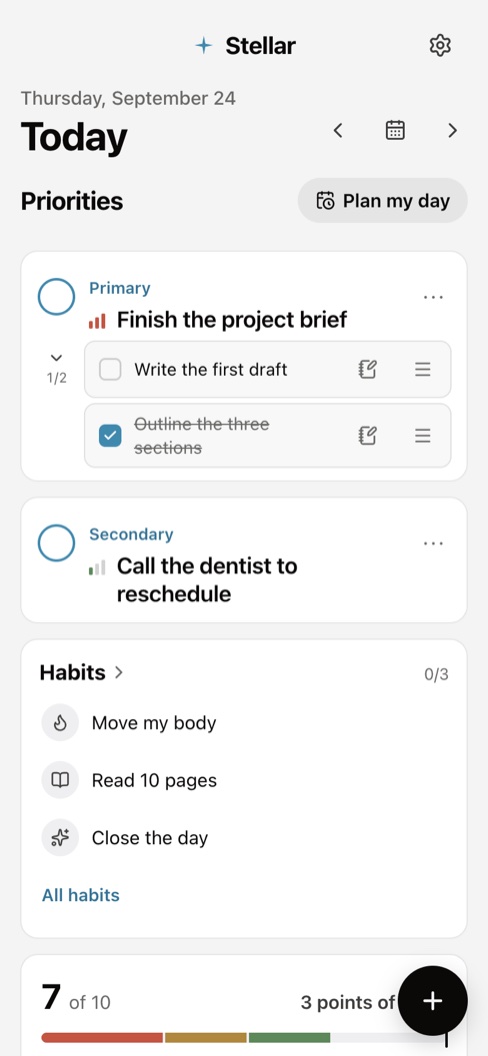
Light is 1 point, Medium 2, Heavy 3. A load meter warns before the day gets too heavy, and Extra tasks stay optional.
A to-do list that weighs your day. I designed it and built it by directing AI agents, one prompt at a time.
Product design / AI-directed development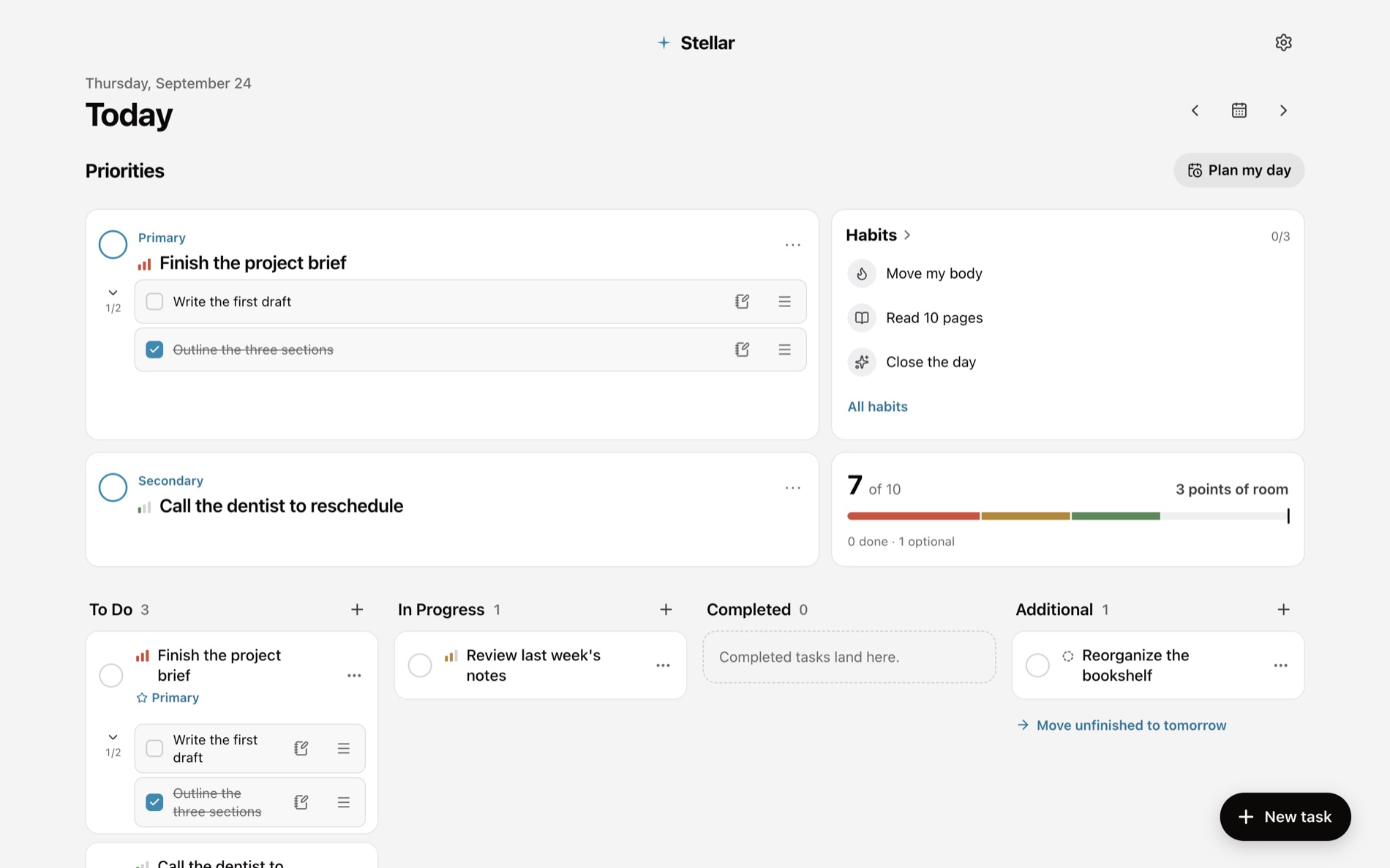
Most to-do lists treat every task the same. Ten small errands and one draining project look equally heavy on the screen, so a day fills up before you notice it can't fit. The two things that actually matter get buried under everything else.
Stellar began as a redesign of my own earlier task app and turned into a rebuild around one question: what fits in today? Every task gets a weight, the day has a limit, and two priorities stay on top until they're done.
I owned the product and the quality bar. I wrote the direction as prompts, and AI agents handled research, code, testing, and deployment. I reviewed every build, pushed back when something felt generated or off by a few pixels, and decided what shipped.
The prompts below are real, lightly trimmed. They show the work better than a summary would: a premise, then a steady run of product decisions, subtractions, and details.
“Improve the design … leaning into a modern, futuristic, glowy minimal vibe using smooth animations. … Scan my vault to understand my app building process and what to do to not make the app look like AI.”
Shipped A design rule that shaped every screen after it: nothing that reads as generated.
“The goal of this app is to prioritize tasks based on a system of light, medium, heavy, and extra … I have two priority tasks that are placed on top to remind me that I need to complete them. … Consider the differences in gestures, touch, and navigation.”
Shipped A weighted load meter, Primary and Secondary slots, swipe and long-press gestures, and an App Store guideline review.
“I also want to implement Gemini AI … to sort through tasks and help users prioritize tasks based off previous time blocking routines … users can define themselves how long a usual task would take them.”
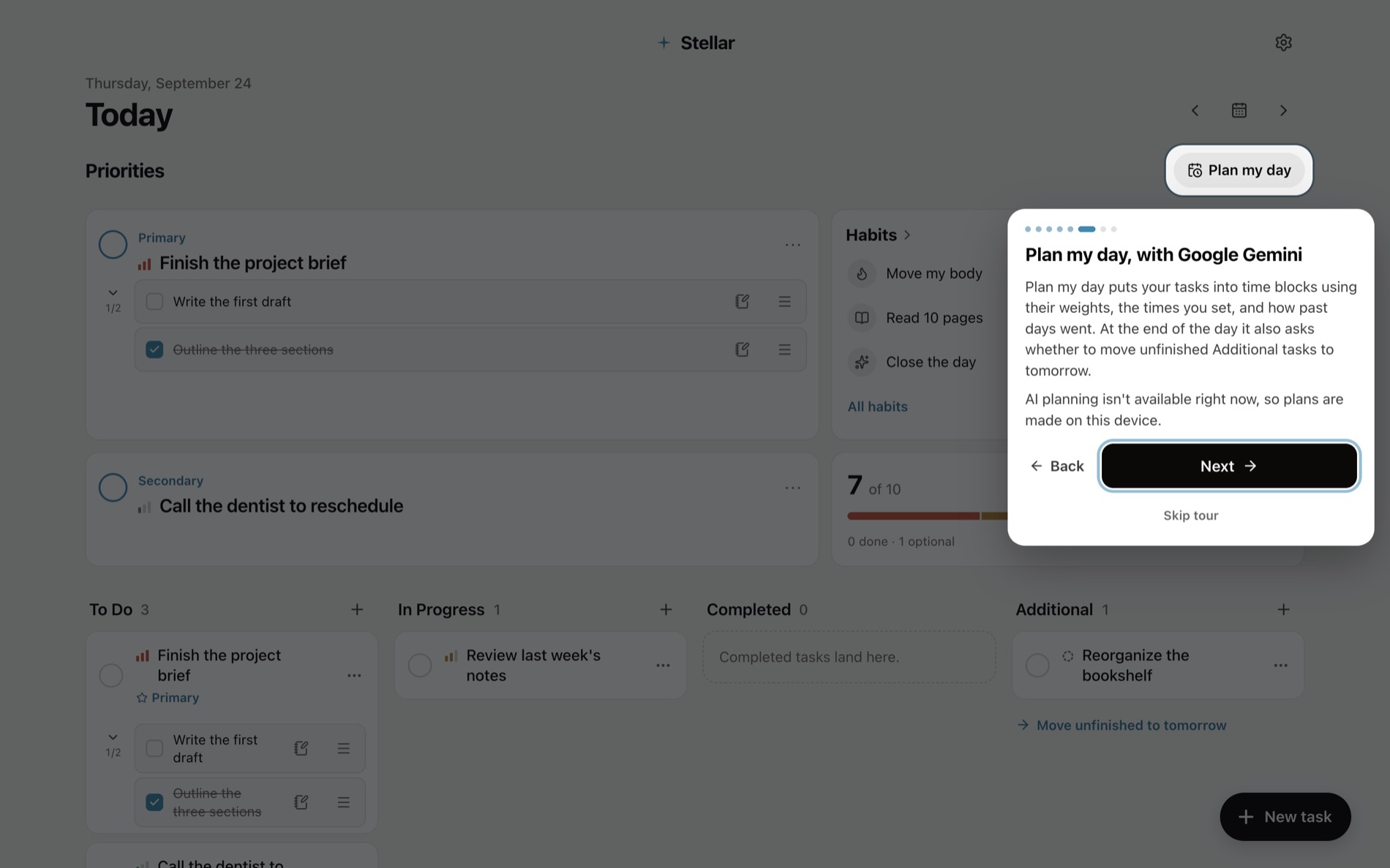
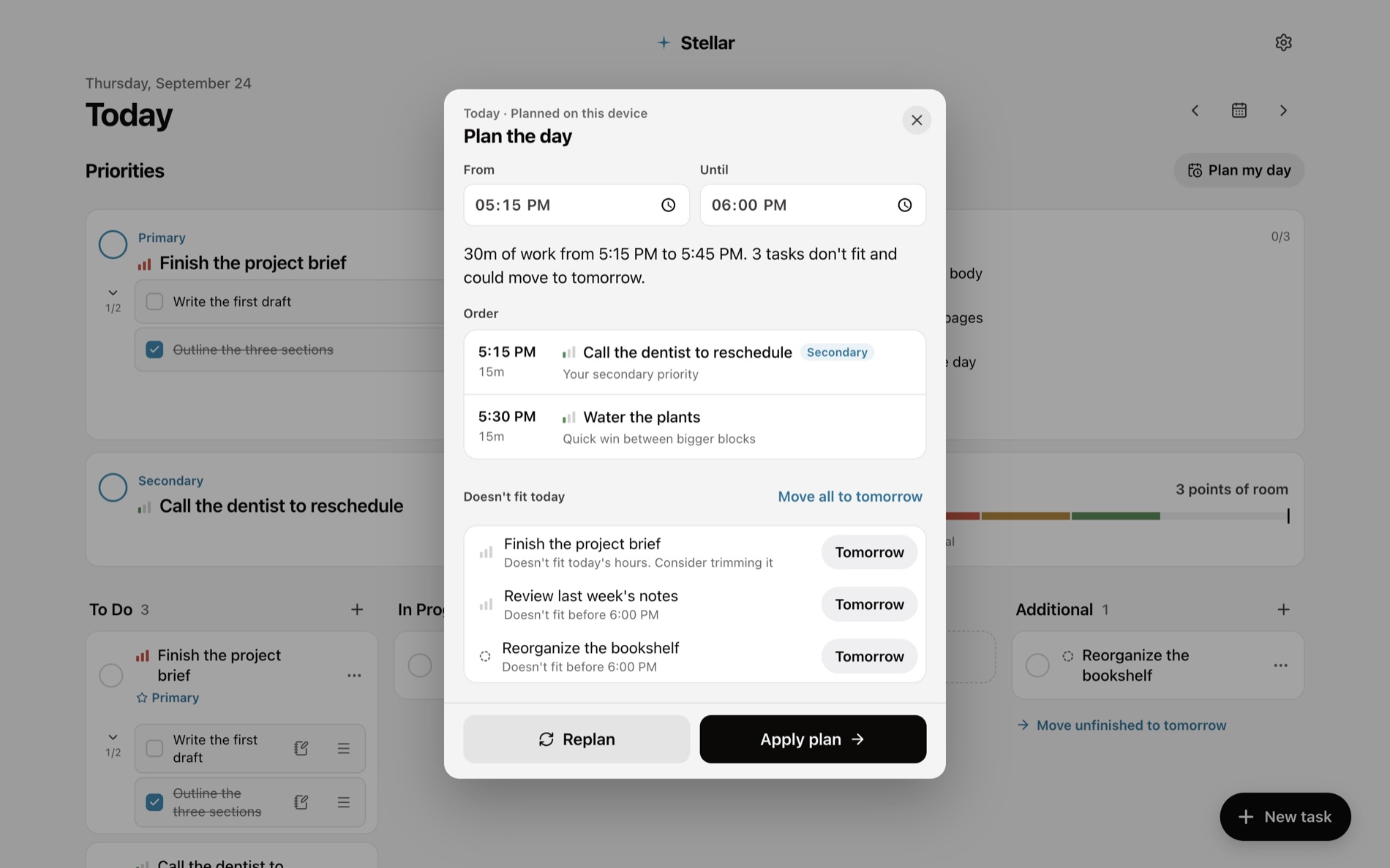
Shipped Plan my day: time blocks inside your work hours, your own time estimates, consent before the first request, and the same planner on the device when Gemini is off.
“The steps should be smaller boxes underneath the main task box but should be close to comply to gestalt principles of proximity. Each step carries less information than the main one but also has an option to hold one note about it.”
Shipped Step cards that sit close to their task, each with one note, a drag handle, and keyboard reordering.
“Remove the repeat option for tasks since that'd just be a habit task.”
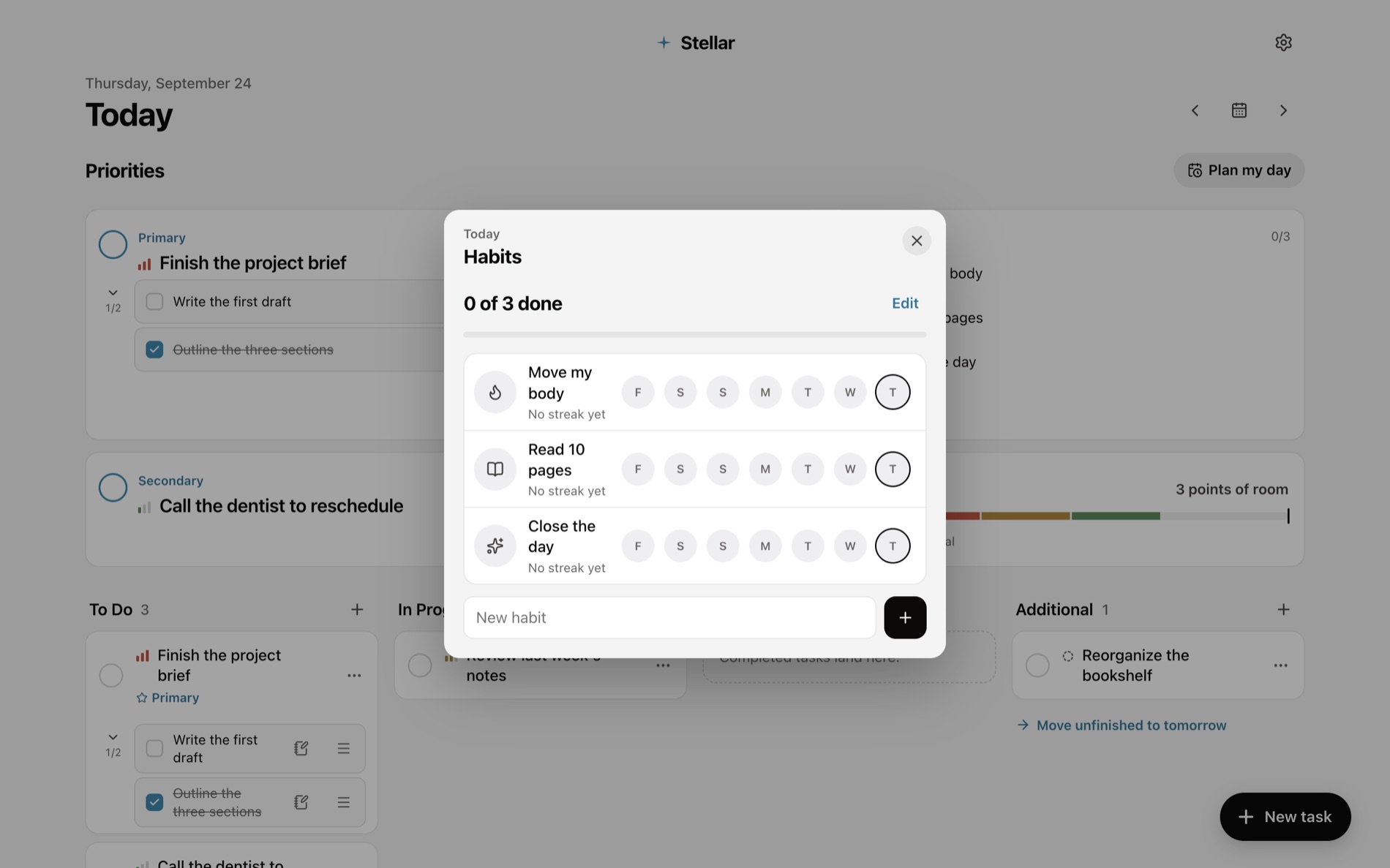
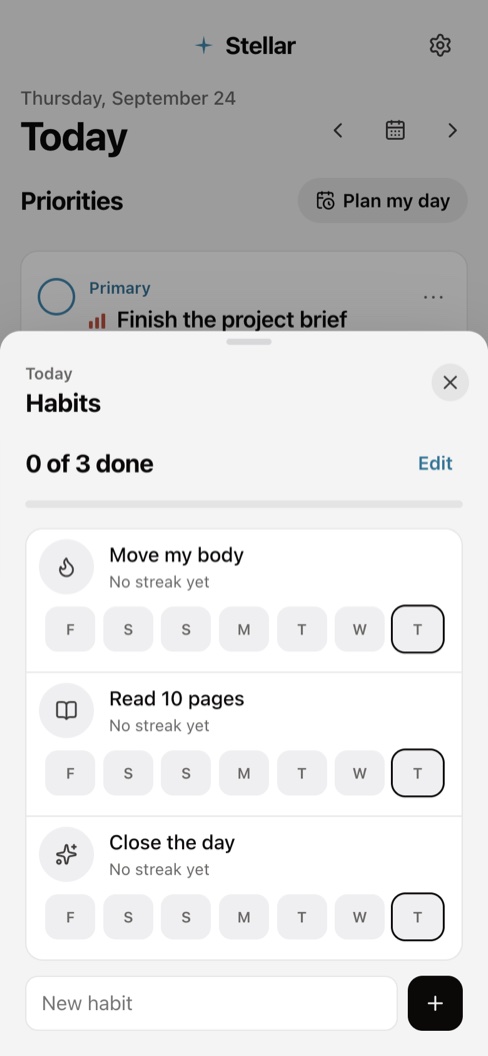
Shipped Repeating tasks retired. Anything recurring is a habit now, which made both simpler.
“Move the secondary task below the primary task and move the habit sections (condense it) to the right side of the primary task. It should be in a bento style format with visible separation. … All additional tasks should be asked to move to the next day if not completed. Gemini should handle this.”
Shipped A bento dashboard, and an end-of-day check-in that suggests moving unfinished optional tasks to tomorrow.
“The entire screen should dim with only the highlighted parts talked about being normal brightness to act as a spotlight effect … The option to create an account should be made last. … Mention how AI and Gemini are being used in the app and if users want to opt out.”
Shipped A one-time spotlight tour with a Keep AI off choice, and Google sign-in as the last, optional step.
“The word Settings should be left aligned on top of planned, and where settings is right now, there should be a back arrow. … The back arrow should be on the left side of the settings title.”
Shipped The title lines up with its panel and the arrow sits in its own gutter, checked by measuring positions in the browser.
“Assume the role of a user and go through all the apps, click all the buttons, check all the problems that may occur, troubleshoot them, and tell me what's going on. … Complete all those items.”
Shipped A full user-style QA pass that found 10 problems, then version 1.8 fixing all of them.
Light is 1 point, Medium 2, Heavy 3. A load meter warns before the day gets too heavy, and Extra tasks stay optional.
Primary and Secondary sit above everything else, so the most important work is the first thing you see.
Orders the day into time blocks inside your hours, using your own estimates. Gemini does it when you allow it, and the device does it when you don't.
Undo on every change, a confirmation before deleting, and Recently deleted keeps tasks for 7 days.
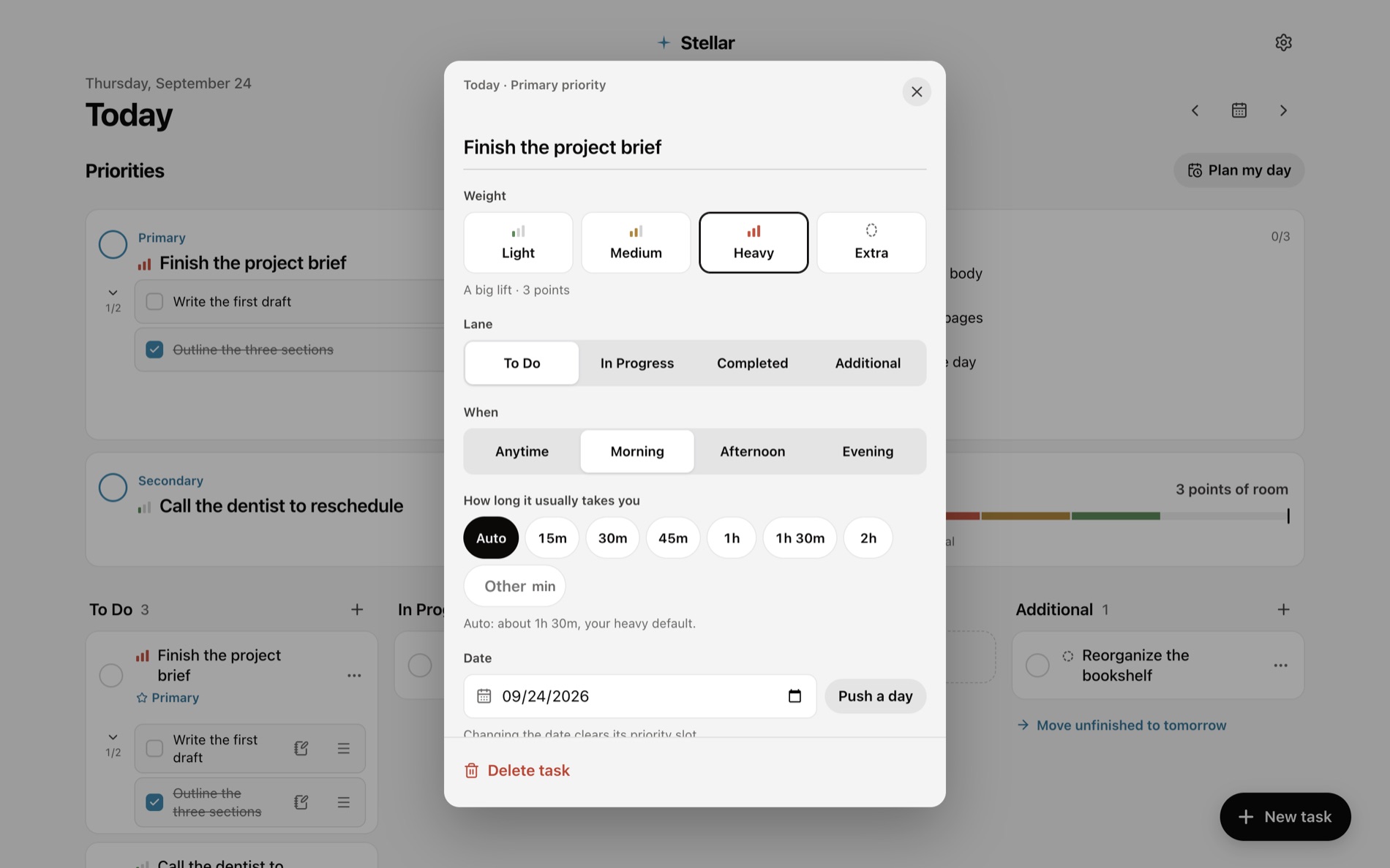
Extra tasks never count against the limit. The meter measures commitments, not wishes.
Gemini asks first, and the same planner runs on the device when it's off, offline, or out of quota.
Plans and end-of-day check-ins only suggest. Nothing moves until you apply it, and applying can be undone.
No sidebar and no tab bar. Settings lives in a corner, Habits in a sheet, and the day stays in view.
Stellar went from a first prompt on September 16 to version 1.8 on September 24. It works without an account, syncs through Google sign-in when you want it to, and plans with Gemini only after you say yes.
Before calling it done, I asked the agent to use it the way a stranger would. That pass found 10 problems, from future habit check-ins to tap targets under 44 points, and each one was fixed and checked on desktop and phone.